Vonigo CRM Integration
Connect heyAstra to your Vonigo account to automatically create leads, work orders, and appointments every time your AI receptionist handles a call.
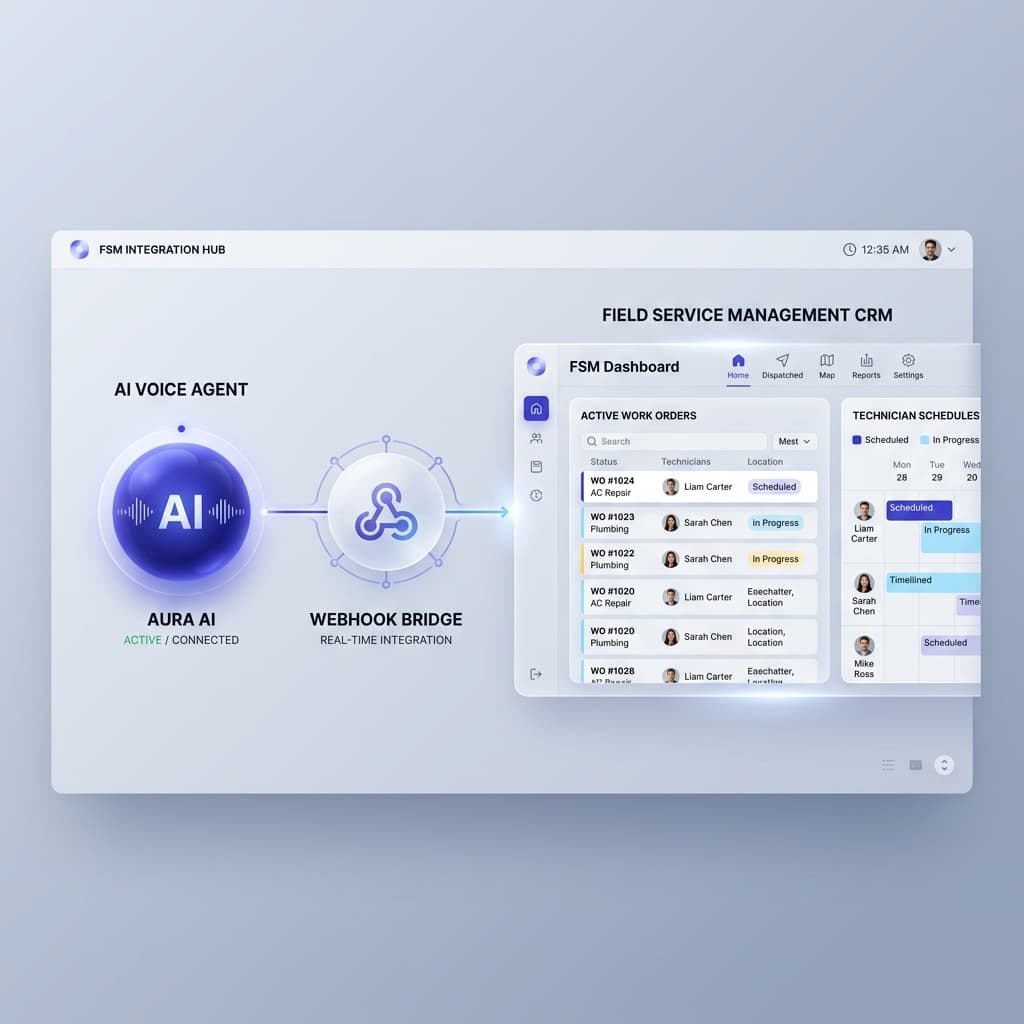
1Set Up Vonigo to Receive Webhooks
Vonigo supports incoming data via its API and Plugin framework. To connect heyAstra, you need a webhook endpoint in Vonigo that can receive call data.
- Log into your Vonigo admin panel.
- Navigate to Settings > API & Integrations (or contact Vonigo support to enable API access for your account).
- Create a new Incoming Webhook or API endpoint that accepts POST requests with JSON data.
- If Vonigo doesn't offer a direct webhook receiver, use a middleware service like Zapier or Make.com to bridge the connection:
- Create a Zapier Zap with a Webhook trigger (Catch Hook)
- Add a Vonigo action using Zapier's Code step or HTTP request to call Vonigo's API
- Copy the webhook URL — you'll need it in the next step.
2Connect to heyAstra
- Open your heyAstra Dashboard at heyastra.is/dashboard.
- Click on the Integrations tab in the sidebar.
- Toggle the CRM Outbound Sync card to active.
- Paste your Vonigo webhook URL into the Webhook URL field.
- Click Save Active Configs.
Your AI receptionist is now connected to Vonigo. Every call will automatically send data to your Vonigo account.
What Data Gets Sent to Vonigo
After every call, heyAstra sends the following JSON payload to your Vonigo webhook. Use these fields to create leads, work orders, or appointment records:
{
  "heyAstra_lead": {
    "phone": "+14695550123",
    "status": "Booked",
    "duration": 142,
    "sentiment": "Positive",
    "summary": "Caller wants to schedule a duct cleaning for next Tuesday.",
    "transcript": "AI: Hello! How can I help? Caller: I need to book a duct cleaning...",
    "audio_recording": "https://vapi.ai/recording_url...",
    "timestamp": "2026-04-16T12:00:00.000Z"
  }
}3Map Fields in Vonigo
Use the following mapping to connect heyAstra data to Vonigo fields:
| heyAstra Field | Vonigo Field | Notes |
|---|---|---|
| phone | Contact Phone | Primary phone number |
| status | Lead Status / Work Order Type | "Booked" = create work order, "Voicemail" = create lead |
| summary | Work Order Description | AI-generated call summary |
| transcript | Notes | Full conversation transcript |
| sentiment | Priority | Map Positive=Low, Neutral=Normal, Negative=High |
| timestamp | Created Date | ISO 8601 format |
| audio_recording | Attachment / Note | Link to call recording |
4Appointment Scheduling
To enable automatic appointment creation in Vonigo when Astra books a call:
- In your Vonigo webhook handler (or Zapier/Make.com workflow), add a conditional step:
- If
status === "Booked"→ Create a Work Order in Vonigo - If
status === "Voicemail"orstatus === "Follow-up"→ Create a Lead for callback
- If
- Use the summary field to populate the work order description — it contains the AI's understanding of what the caller needs (e.g., "Caller wants duct cleaning next Tuesday").
- Use the phone field to match or create a Vonigo contact.
- If using Calendly alongside Vonigo, heyAstra can also check availability and send booking links via SMS during the call. See the Calendar Sync guide.
5Need Help?
Setting up a CRM integration can be complex. We offer two support options:
Self-Service
Follow this guide and use Zapier or Make.com as middleware between heyAstra and Vonigo.
Free with any plan
White-Glove Setup
Our team configures the full Vonigo integration for you — field mapping, work order creation, and testing.
$149 one-time
Note: Vonigo API access may require a Vonigo Enterprise plan or contacting Vonigo support to enable it. Check with your Vonigo account manager before starting.